In an era where our lives are increasingly lived through digital screens, the concepts of identity and privacy have undergone a fundamental transformation. Our personal data—from our financial records and medical history to our shopping habits and social connections—has become a valuable commodity, traded, analyzed, and, unfortunately, targeted by malicious actors. The threats are no longer just viruses that slow down your computer; they are sophisticated, financially motivated operations that aim to steal your identity, drain your accounts, and exploit your digital life.
The year 2024 presents a unique cybersecurity landscape. With the proliferation of Artificial Intelligence (AI), the expansion of the Internet of Things (IoT), and the increasing sophistication of social engineering attacks, the traditional “password and antivirus” approach is no longer sufficient. Protecting yourself requires a proactive, layered strategy grounded in modern best practices.
This guide is not just a list of tips; it is a holistic framework for building a resilient digital identity. Drawing on established security principles and the evolving threat environment of 2024, we will walk through the essential steps you need to take to secure your data, your devices, and, ultimately, your life online.
Part 1: The Foundation – Mastering Access Control
The first and most critical line of defense is controlling who and what can access your accounts and devices.
1.1 The Era of the Password Manager is Here. Embrace It.
If you are still reusing simple passwords across multiple sites, you are carrying immense risk. Data breaches are commonplace, and hackers routinely use credentials from one breach to attempt to log into thousands of other services—a technique known as “credential stuffing.”
- The Solution: A reputable password manager. Tools like Bitwarden, 1Password, and LastPass generate and store complex, unique passwords for every single account you have.
- Why it’s Essential for 2024: You only need to remember one master password. The manager auto-fills login forms, making it effortless to use strong, unique credentials everywhere. This single step neutralizes the threat of credential stuffing.
- Actionable Tip: Start by adding your most critical accounts to a password manager: email, banking, and social media. Then, gradually work your way through all your other accounts, using the password manager’s “password generator” to create new, strong passwords for each.
1.2 Make Two-Factor Authentication (2FA) Non-Negotiable
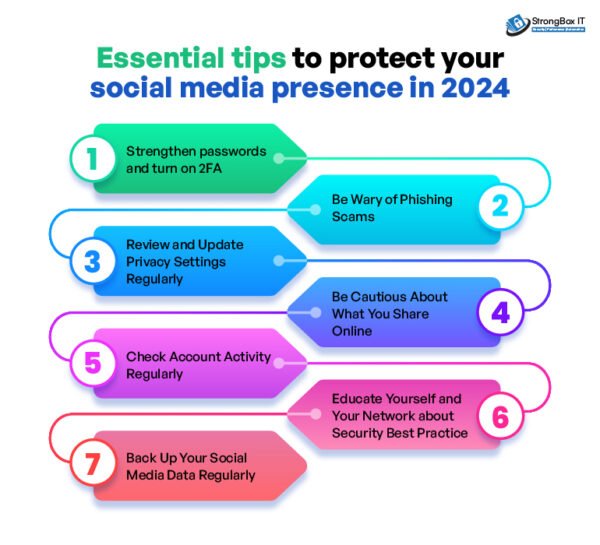
Two-Factor Authentication adds a second layer of security, requiring something you know (your password) and something you have (your phone or a security key). Even if a hacker steals your password, they cannot log in without this second factor.
- The Hierarchy of 2FA Methods (from Best to Good):
- Physical Security Keys (e.g., YubiKey, Google Titan): The gold standard. These are phishing-resistant hardware devices you plug in or tap.
- Authenticator Apps (e.g., Google Authenticator, Authy, Microsoft Authenticator): Excellent and widely available. They generate time-based codes on your phone, which are more secure than SMS.
- SMS/Text Message Codes: The most common but least secure method. Hackers can perform SIM-swapping attacks to intercept your texts. Use this only if it’s the only option available.
- Why it’s Essential for 2024: AI-powered phishing attacks are becoming incredibly convincing. 2FA, especially app-based or hardware-based, is your best defense against these sophisticated lures.
- Actionable Tip: Go through the security settings of your key accounts (email, bank, cloud storage) and enable 2FA immediately. Prioritize using an authenticator app over SMS.
Part 2: Fortifying Your Digital Castle – Device and Network Security
Your accounts are only as secure as the devices and networks you use to access them.
2.1 The Unseen Threat: Securing Your Router and Home Network
Your home Wi-Fi router is the gateway to all your connected devices. A vulnerable router can give an attacker access to your entire digital home life.
- Change Default Credentials: The first thing a hacker will try is the router’s default admin username and password (often “admin/admin”). Change these immediately.
- Update Firmware Regularly: Router manufacturers release firmware updates to patch security vulnerabilities. Enable automatic updates if available, or check for them quarterly.
- Use Strong Encryption: Ensure your Wi-Fi network is using WPA3 encryption. If your router doesn’t support WPA3, use WPA2 (AES). Never use outdated WEP encryption.
- Create a Guest Network: Provide a separate Wi-Fi network for visitors and IoT devices. This isolates your primary devices (laptops, phones) from potentially less secure smart gadgets.
2.2 The Virtual Shield: Using a VPN (Wisely)
A Virtual Private Network (VPN) encrypts all the internet traffic between your device and a remote server. This is crucial for privacy on untrusted networks, like public Wi-Fi at coffee shops or airports.
- When to Use a VPN:
- On any public Wi-Fi network.
- To add a layer of privacy from your Internet Service Provider (ISP).
- To access region-locked content (a secondary benefit).
- Choosing a Reputable VPN: Avoid free VPNs, as they often make money by selling your data. Look for a paid, reputable provider (e.g., ProtonVPN, Mullvad, NordVPN) with a clear no-logs policy.
- A Note for 2024: A VPN does not make you anonymous, nor does it replace other security measures like HTTPS (the lock icon in your browser). It is a specific tool for a specific job: encrypting your connection on untrusted networks.
2.3 The Basics, Perfected: Software Updates and Antivirus
This may seem old-school, but it remains critically important.
- Automate Your Updates: Enable automatic updates for your operating system (Windows, macOS, iOS, Android), web browsers, and all major applications. Cybercriminals exploit known vulnerabilities that patches are designed to fix. Delaying an update is an open invitation.
- Next-Generation Antivirus (NGAV): Modern antivirus software does more than just scan for viruses. It uses behavioral analysis to detect and stop ransomware, zero-day attacks, and other sophisticated malware. For Windows users, the built-in Microsoft Defender has become very robust, but third-party options from Malwarebytes or Bitdefender offer additional layers of protection.
Part 3: The Human Firewall – Defending Against Social Engineering
The most sophisticated security technology can be undone by a single clever trick played on a human. You are the final, and most important, line of defense.
3.1 The Art of the Phish: Identifying Modern Scams
Phishing emails and texts have evolved far beyond the “Nigerian prince” trope. In 2024, they are highly personalized, often using information gleaned from previous data breaches.
- Common Red Flags:
- Urgency and Fear: “Your account will be closed in 24 hours!” or “Suspicious activity detected!”
- Too-Good-To-Be-True Offers: “You’ve won a prize! Click here to claim.”
- Generic Greetings: “Dear Valued Customer” instead of your actual name.
- Spoofed Sender Addresses: Hover over the “from” address to see if it’s legitimate. An email from “amazon-security@mail-service.ru” is not from Amazon.
- Suspicious Links and Attachments: Never click a link or open an attachment you weren’t expecting. Hover over links to preview the true destination URL.
- The AI Twist: AI can now generate perfectly grammatical, highly convincing phishing emails at scale, making them harder to distinguish from real communications.
3.2 Vishing and Smishing: The Phone-Based Threat
Social engineering isn’t confined to email.
- Vishing (Voice Phishing): Scammers call you, often spoofing the number of a legitimate company like your bank or the IRS, to trick you into revealing personal information or granting remote access to your computer.
- Smishing (SMS Phishing): Fraudulent texts that appear to be from your bank, a delivery service (like FedEx), or a government agency, containing a malicious link.
- The Golden Rule: If you receive an unsolicited call, text, or email requesting personal information, money, or remote access, do not comply. Hang up or delete the message. If you’re concerned, contact the organization directly using a verified phone number or website from your records, not the one provided in the suspicious message.
3.3 Digital Hygiene: The Principle of Least Privilege
Be mindful about what information you share and what permissions you grant.
- Social Media Oversharing: Avoid posting sensitive personal information like your full birthdate, home address, or when you’re going on vacation. Review your privacy settings regularly to limit your audience.
- App Permissions: When installing a new app, critically review the permissions it requests. Does a simple flashlight app really need access to your contacts and location? Deny unnecessary permissions.
- Think Before You Click: Cultivate a habit of healthy skepticism. Pause for a moment before clicking any link, downloading any file, or sharing any information online.
Part 4: Data Custodianship – Managing Your Digital Footprint
Your data is scattered across the internet. Taking control of it is a powerful form of protection.
4.1 The Privacy Checkup: A Periodic Audit
Dedicate time every six months to conduct a personal privacy audit.
- Review Old Accounts: Use a service like JustDeleteMe to find and delete accounts on old, unused websites. Each dormant account is a potential liability in a future data breach.
- Check App Permissions: Go into your Google or Facebook settings and review which third-party apps have access to your data. Revoke access for anything you no longer use.
- Google Yourself: See what information about you is publicly available. This can help you understand your digital footprint from an outsider’s perspective.
4.2 The Power of Encryption: Securing Your Data at Rest
Encryption scrambles your data so that only someone with the key can read it.
- Full-Disk Encryption: Enable it on all your devices. This is called FileVault on macOS and BitLocker on Windows Pro. On smartphones, it’s typically enabled by default when you use a passcode. This ensures that if your device is lost or stolen, the data on it is inaccessible.
- Encrypted Cloud Storage: For highly sensitive files, consider using a cloud service with zero-knowledge, client-side encryption like Tresorit or Sync.com. This means the provider cannot see your files, even if compelled by law.
4.3 The Credit Freeze: The Ultimate Financial Defense
If you are serious about preventing identity theft, a credit freeze is your most powerful tool.
- What it Does: A credit freeze locks your credit file at the three major bureaus (Equifax, Experian, and TransUnion). This prevents anyone, including you, from opening new lines of credit in your name until the freeze is temporarily lifted or permanently removed.
- Why it’s Superior to Fraud Alerts: It is proactive, not reactive. Placing a freeze is free, and it does not affect your credit score.
- Actionable Tip: Go to the websites of Equifax, Experian, and TransUnion and place a credit freeze. It takes about 15 minutes per bureau and provides immense peace of mind.
Read more: How to Cut the Cable Cord: A Beginner’s Guide to Streaming TV in the USA
Part 5: Looking Ahead – Emerging Threats and Proactive Measures for 2024 and Beyond
The threat landscape is not static. To stay safe, we must anticipate what’s coming.
5.1 The AI Duel: Offense vs. Defense
AI is a double-edged sword in cybersecurity.
- The Threat: Hackers use AI to create more believable phishing emails, generate deepfake audio for CEO fraud, and discover new software vulnerabilities faster.
- The Defense: Security companies are using AI to analyze network traffic for anomalous behavior, detect malware variants, and automate threat response. As a user, your best defense remains skepticism and adhering to the foundational principles outlined in this guide.
5.2 The Expanding Attack Surface: IoT and Smart Devices
Your smart TV, thermostat, doorbell, and refrigerator are all computers connected to your network.
- The Risk: Many IoT devices have poor security, weak default passwords, and infrequent updates, making them easy targets to be hijacked for botnets or used as a stepping stone into your main network.
- Mitigation: Isolate IoT devices on a guest network, change their default passwords immediately, and disable any features you don’t use (like remote access).
5.3 Biometric Authentication: Convenient but Not Infallible
Fingerprints and face scans are convenient, but they are not secrets. If your biometric data is stolen, you cannot change your face or fingerprint like you can a password.
- The 2024 Approach: Use biometrics for device unlocking convenience, but rely on a strong password or PIN as the primary method of authentication for sensitive accounts. Biometrics should be a supplement, not a replacement, for strong traditional credentials.
Conclusion: Security is a Journey, Not a Destination
Protecting your identity and data online in 2024 is not about achieving a single, unbreachable state of perfection. It is about building resilient habits and adopting a layered security mindset. By implementing the strategies in this guide—from mastering password management and 2FA to securing your home network and sharpening your skepticism against social engineering—you dramatically reduce your attack surface and elevate your personal cybersecurity posture.
Start today. Pick one section, perhaps setting up a password manager or enabling 2FA on your email account, and take that first step. Your digital identity is one of your most valuable assets; it is worth the effort to defend it.
Read more: How to Build Your Credit Score from Scratch Using Free Online Tools
Frequently Asked Questions (FAQ)
Q1: I think I’ve already been part of a data breach. What should I do right now?
A: First, don’t panic. Go to Have I Been Pwned to see which breaches you’ve been involved in. Then, take these steps immediately:
- Change Passwords: For any account involved, change the password immediately to a new, strong, unique one (preferably using a password manager).
- Enable 2FA: If you haven’t already, turn on two-factor authentication for those accounts.
- Monitor Statements: Closely monitor your bank and credit card statements for any unauthorized transactions.
- Consider a Credit Freeze: As a preventative measure, place a credit freeze with the three major bureaus.
Q2: Are password managers safe? What if the company gets hacked?
A: Reputable password managers use a “zero-knowledge” architecture. This means your master password is used to encrypt your data on your device before it is ever sent to their servers. They do not have your master password or the keys to decrypt your vault. Even if their servers were compromised, hackers would only get encrypted, unusable data. Your security rests entirely on the strength of your master password.
Q3: What’s the single most important thing I can do to improve my security today?
A: If you do only one thing, enable two-factor authentication (2FA) on your primary email account. Your email is often the “key to the kingdom” because it’s used for password resets for all your other services. Using an authenticator app is the recommended method.
Q4: How often should I be changing my passwords?
A: The guidance has evolved. The current best practice is to use long, unique passwords for every site and only change them if you have a reason to believe they have been compromised. Frequent, arbitrary password changes can lead to people creating weaker, sequential passwords (e.g., MyPassword01, MyPassword02) or writing them down insecurely. The focus should be on uniqueness and strength, not frequent rotation.
Q5: Is it safe to use public Wi-Fi?
A: It carries risk, but you can manage it. Never access sensitive accounts (banking, email) or conduct financial transactions on public Wi-Fi without a VPN. A VPN encrypts your connection, making it safe. If you don’t have a VPN, use your phone’s cellular data as a personal hotspot, as it is more secure.
Q6: What should I do if I accidentally click on a phishing link?
A: 1. Disconnect: Immediately turn off Wi-Fi and mobile data to sever the connection.
2. Don’t Enter Information: If a login page loaded, do not type anything in.
3. Scan for Malware: Run a full scan with your antivirus/anti-malware software.
4. Change Passwords: As a precaution, change the password for the service the phish was impersonating, and any account where you use a similar password.
5. Report It: Forward the phishing email to the legitimate company (most have a dedicated address like phishing@company.com) and to the Anti-Phishing Working Group at reportphishing@apwg.org.
Q7: My parents/grandparents are not tech-savvy. How can I help protect them?
A: Focus on simplicity and education.
- Set Up Their Devices: Install a password manager and set up strong, unique passwords for them. Enable 2FA using an authenticator app on your phone if they are not comfortable with it.
- Use a Guest Network: Set up a separate Wi-Fi network for their devices to isolate them.
- Have “The Talk”: Have a calm, non-alarmist conversation about common scams. Teach them the golden rule: “If someone calls, texts, or emails you asking for money or personal info, hang up/delete it and call me first.”
- Enable Screen Time/Family Safety Features: These can help block malicious websites and apps.