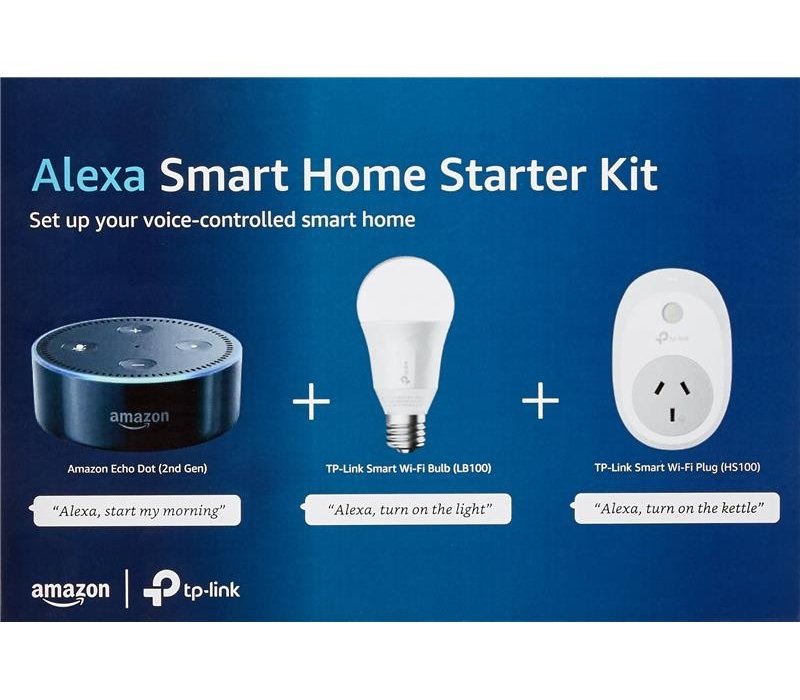
Welcome to the world of smart homes! If you’ve ever dreamed of telling your house to turn on the lights, only to wonder where on earth to begin, you’ve come to the right place. Starting a smart home can feel daunting, but it doesn’t have to be. The most satisfying and impactful entry point is also one of the simplest: connecting a smart speaker like an Amazon Echo (Alexa) with smart lights and smart plugs.
This guide is your definitive, step-by-step companion. We won’t just give you instructions; we’ll explain the why behind them, drawing from years of experience in integrating and troubleshooting these systems. Our goal is to empower you with the knowledge and confidence to build a foundation that is not only functional today but also scalable for your smart home of tomorrow.
Why Start with Alexa, Lights, and Plugs?
Before we dive into the “how,” let’s establish the “why.” This trio forms the perfect smart home starter kit for several key reasons:
- Immediate, Tangible Benefits: The ability to control your lighting and appliances with your voice or phone is a game-changer in daily convenience. No more fumbling for switches with arms full of groceries.
- Low Cost of Entry: You can start with a single Echo Dot, one smart bulb, and one smart plug for a very reasonable investment and expand gradually.
- Foundation for Automation: This combination is the bedrock of automation. You can create “Routines” where your lights turn on at sunset, or your coffee maker starts when your morning alarm goes off.
- Non-Disruptive Installation: In most cases, you don’t need to touch your home’s wiring. You’re simply screwing in bulbs and plugging devices into existing outlets.
Part 1: Understanding the Core Components
To build a robust system, you need to understand the pieces of the puzzle.
The Brain: Amazon Echo with Alexa
An Amazon Echo device is more than just a speaker; it’s the hub and interface for your smart home. Alexa, the voice service, acts as your personal assistant, interpreting your commands and relaying them to your devices.
- Choosing Your Echo: For a starter kit, an Echo Dot is the perfect choice. It’s affordable, compact, and packs all the necessary features. If you want better sound quality for music, consider the standard Echo or Echo Studio.
- Key Feature – The Zigbee Hub: This is a crucial, often overlooked detail. Some Echo devices, like the Echo (4th Gen), Echo Studio, and Echo Show 10, have a built-in Zigbee hub. Zigbee is a low-power, wireless communication protocol used by many smart devices. Having a built-in hub means you can connect compatible Zigbee devices (like many Philips Hue bulbs or Sengled bulbs) directly to your Echo without needing a separate brand-specific hub. This can simplify your setup and save money.
The Ambiance Makers: Smart Lights
Smart lights offer far more control than simple on/off switching.
- Smart Bulbs vs. Smart Switches: This is a fundamental decision.
- Smart Bulbs: You replace your existing bulbs with Wi-Fi or Zigbee-enabled ones. They offer features like color changing, dimming, and tunable white light (from warm to cool white). The downside? If someone turns off the physical wall switch, the bulb loses power and becomes “dumb” until the switch is flipped back on.
- Smart Switches: You replace your wall switch with a smart one. This allows you to control all the lights connected to that switch (including multiple standard bulbs) intelligently. It maintains the familiar physical control but can be more complex to install if you’re not comfortable working with electrical wiring.
- Recommendation for Starters: Begin with smart bulbs in lamps or fixtures where you rarely use the wall switch. It’s easier and unlocks fun features like colors.
- Communication Protocols: Smart bulbs primarily use Wi-Fi or Zigbee.
- Wi-Fi Bulbs: Connect directly to your home Wi-Fi network. They are simple to set up but can clog your network if you have dozens of them.
- Zigbee Bulbs: Require a hub (like the one in certain Echo devices) to connect to your network. They create their own mesh network, which can be more reliable and less taxing on your Wi-Fi.
The Power Controllers: Smart Plugs
Smart plugs are arguably the most versatile smart home device. You plug them into a standard wall outlet, and then you plug any appliance into them. Suddenly, that “dumb” lamp, fan, or coffee maker becomes smart.
- Functionality: They allow you to turn the power to that outlet on or off remotely via an app or voice command.
- Energy Monitoring: Some higher-end smart plugs include energy monitoring, which can tell you how much electricity a device is using. This is great for identifying energy vampires.
- Protocols: Like bulbs, they come in Wi-Fi and Zigbee variants. Wi-Fi plugs are the most common and straightforward for beginners.
Part 2: The Pre-Flight Checklist: Gearing Up for Success
A little preparation prevents a lot of frustration.
What You’ll Need:
- A Stable Wi-Fi Network: This is non-negotiable. Your smart home lives on your network. Ensure you have a strong signal in the rooms where you’re placing devices. A mesh Wi-Fi system (like Eero, Google Nest Wifi, or TP-Link Deco) is highly recommended for whole-home coverage.
- The Amazon Alexa App: Download this on your smartphone (iOS or Android). This is your command center for setting up and managing everything.
- Your Echo Device: Plug it in and follow its initial setup process to connect it to your Wi-Fi.
- Your Smart Lights & Plugs: Have them unpacked and ready.
- A Smartphone with a Good Camera: You’ll need it to scan QR codes during setup.
Strategic Placement:
- Echo: Place your Echo in a central location, like a living room or kitchen, where it can hear you easily.
- Smart Lights: Ideal for bedside lamps, living room end-table lamps, or porch lights—places where you want ambiance or hands-free control.
- Smart Plugs: Perfect for controlling floor lamps, fans, space heaters, or holiday decorations. Avoid using them for appliances that have digital clocks or complex settings, as cutting power completely can reset them.
Part 3: The Step-by-Step Connection Guide
Now for the main event. We’ll walk through the process for both Wi-Fi and Zigbee devices.
Step 1: Setting Up Your Echo and the Alexa App
If you haven’t already, plug in your Echo. A blue ring light will indicate it’s in setup mode.
- Open the Amazon Alexa app on your phone.
- Tap the “Devices” tab at the bottom.
- Tap the “+” icon in the top-right corner.
- Select “Add Device.”
- Choose “Amazon Echo.”
- Select your specific model and follow the on-screen instructions to connect it to your Wi-Fi network. This process is very intuitive and will have you talking to Alexa in minutes.
Step 2: Installing Your Smart Plugs
We’ll start with plugs as they are often the easiest.
For a Standard Wi-Fi Smart Plug:
- Plug the smart plug into a wall outlet nearby. It usually blinks to indicate it’s in pairing mode.
- In the Alexa app, go to Devices > “+” > “Add Device.”
- Select “Plug” (it might also be under “All Devices” or “Electrical”).
- Choose the brand of your plug from the list. (Popular brands include TP-Link Kasa, Gosund, Wemo, etc.).
- The app will now guide you through the brand-specific process. This almost always involves:
- Ensuring your phone is connected to your 2.4 GHz Wi-Fi band. (Most smart devices do not work with 5 GHz).
- The plug will create its own temporary Wi-Fi network. You’ll leave the Alexa app momentarily, go to your phone’s Wi-Fi settings, and connect to that network (e.g., “SmartPlug_XXXX”).
- You’ll then return to the Alexa app, where it will ask you to select your home’s main Wi-Fi network and enter the password. The app then passes these credentials to the plug.
- Once successful, the plug will stop blinking and show a solid light. The Alexa app will confirm the device has been discovered. You can now name it (e.g., “Coffee Maker,” “Bedside Lamp“).
For a Zigbee Smart Plug (using an Echo with a built-in Zigbee hub):
- Plug the Zigbee plug into an outlet.
- In the Alexa app, go to Devices > “+” > “Add Device.”
- Select “Plug” and then choose “Zigbee.”
- The app will tell you to put your Echo into discovery mode. Say, “Alexa, discover my devices.” Alternatively, you can tap “Discover Devices” in the app.
- Alexa will search for a minute or two. The plug should be found automatically. Name it appropriately.
Step 3: Installing Your Smart Lights
The process for lights is very similar.
For a Wi-Fi Smart Bulb:
- Screw the smart bulb into a lamp or fixture. Turn the lamp’s power ON. The bulb may blink to indicate it’s ready to pair.
- In the Alexa app, go to Devices > “+” > “Add Device.”
- Select “Light” and then choose the brand (e.g., LIFX, TP-Link Kasa).
- Follow the same brand-specific process as the Wi-Fi plug, which typically involves connecting your phone to the bulb’s temporary network to provide it with your Wi-Fi details.
- Once added, name the bulb something descriptive, like “Reading Lamp” or “Porch Light.”
For a Zigbee Smart Bulb (using an Echo with a built-in Zigbee hub):
- Screw the Zigbee bulb into a lamp and turn it on.
- In the Alexa app, go to Devices > “+” > “Add Device.”
- Select “Light” and then choose the brand (e.g., Philips Hue, Sengled). If your bulb’s brand isn’t listed, choose “Zigbee.”
- Put your Echo into discovery mode by saying, “Alexa, discover my devices.”
- The bulb will be found and added. Name it.
Part 4: Mastering Control and Automation
Now that everything is connected, let’s move from basic control to true smart home magic.
Basic Voice Commands:
You can now use simple voice commands with your Echo:
- “Alexa, turn on the Bedside Lamp.“
- “Alexa, turn off the Coffee Maker.“
- “Alexa, set the Reading Lamp to 50%.” (for dimmable bulbs)
- “Alexa, change the Living Room Light to blue.” (for color bulbs)
Creating Groups for Seamless Control
Controlling devices one-by-one is useful, but grouping them is where convenience skyrockets.
- Room Groups: This is the most important organizational step.
- In the Alexa app, go to Devices > “+” > “Add Group.”
- Select “Room” or “Room Group.”
- Name it (e.g., “Living Room”).
- Select all the devices that are physically located in your living room—your Echo, your smart lights, and your smart plugs.
- Now, you can say, “Alexa, turn off the Living Room,” and everything in that group will turn off. “Alexa, good night” can turn off all lights in the house if you have a “Whole Home” group.
- Light Groups: You can also create a group specifically for lights. For example, you can group two table lamps into a “Reading Lights” group and control them simultaneously.
Unleashing Power with Alexa Routines
Routines are automated sequences that trigger multiple actions with a single command, a schedule, or another trigger. This is the heart of a true smart home.
Example Routine 1: “Good Morning”
- Trigger: Voice (“Alexa, good morning”) or Schedule (Weekdays, 7:00 AM).
- Actions:
- Turn on “Bedside Lamp” to 20% (a gentle wake-up).
- Turn on “Coffee Maker” plug.
- Alexa says, “Good morning! The weather today will be…”
- Play your favorite news briefing.
Example Routine 2: “Movie Time”
- Trigger: Voice (“Alexa, movie time”).
- Actions:
- Turn off “Living Room” overhead lights.
- Turn on “Lamp” to 10% for dim ambiance.
- (If you have a smart TV) Turn on the TV and set the input.
Example Routine 3: “Sunset”
- Trigger: Schedule (Sunset, based on your location).
- Actions:
- Turn on “Porch Light.”
- Turn on “Living Room Lamp.”
How to Create a Routine:
- In the Alexa app, go to the “More” tab > “Routines” > “+” to create a new one.
- “When this happens…” – Set your trigger (Voice, Schedule, Device, etc.).
- “Add action” – Choose what you want to happen (Smart Home, Alexa Says, Music, etc.).
- Select the specific devices and what you want them to do.
- Save the routine.
Read more: How To Start Investing with Little Money: A Beginner’s Guide to the US Market
Part 5: Troubleshooting Common Issues
Even the best systems have hiccups. Here’s how to solve the most common problems.
- “Alexa, I can’t find [device name].”
- Solution: The device is likely offline. First, check that the physical device has power (the lamp is switched on, the plug is firmly in the outlet). Then, in the Alexa app, go to Devices, find the device, and check its status. If it’s offline, try power-cycling it (unplug and replug). If that fails, delete the device from the Alexa app and re-add it.
- Device Fails to Connect During Setup.
- Solution 1: Ensure your phone is on the 2.4 GHz Wi-Fi band. This is the #1 cause of setup failures.
- Solution 2: Move the device (or your phone) closer to your Wi-Fi router during setup to ensure a strong signal.
- Solution 3: Restart your phone and your Wi-Fi router.
- Alexa Doesn’t Respond to a Command.
- Solution: Check the device name. Avoid generic names like “light” or “plug.” Use distinct names. Also, ensure you’re using the correct wake word and that the Echo’s microphone isn’t muted (the red light ring indicates it’s muted).
- Smart Bulb is Unresponsive After Wall Switch is Turned Off.
- Solution: This is the fundamental limitation of smart bulbs. You must leave the physical wall switch in the ON position at all times. Use voice commands, the app, or automation to control the bulb. If this is a persistent issue, consider replacing the wall switch with a smart switch instead.
- Lag or Delayed Response.
- Solution: This is often a Wi-Fi congestion issue. Too many devices can strain an older router. Consider upgrading your router or moving some devices to a Zigbee network (using an Echo with a built-in hub) to reduce Wi-Fi load.
Part 6: Expanding Your Starter Kit
Once you’re comfortable with your lights and plugs, the world is your oyster. Here are logical next steps:
- Smart Thermostat: Devices like the Ecobee or Nest Learning Thermostat can save you money on energy bills and add comfort.
- Smart Blinds: Control the sunlight in your room with your voice or a schedule.
- Smart Sensors: Door/window sensors can trigger routines—like turning on a light when you open the door at night.
- More Plugs and Lights: Expand the convenience to every room.
Conclusion: Your Home, Now Smarter
Starting your smart home journey with Alexa, lights, and plugs is a practical, rewarding, and affordable project. By understanding the components, following a methodical setup process, and mastering groups and routines, you transform simple gadgets into an intelligent system that makes your daily life noticeably easier and more enjoyable.
Remember, the best smart home is one that works for you, not one you have to work for. Start small, master the basics covered in this guide, and build from there. Before long, you’ll wonder how you ever lived without it.
Read more: How To Improve Your Credit Score in the USA: 7 Actionable Steps
Frequently Asked Questions (FAQ)
Q1: Do I need a special hub for all this, or is my Echo enough?
For the devices described in this guide, your Echo is often enough. However, if you purchase Wi-Fi devices, they connect directly to your router. If you purchase Zigbee devices, you will need a hub. The good news is that several Echo devices (like the 4th Gen Echo and Echo Studio) have a built-in Zigbee hub, making them a great all-in-one solution. Always check the device requirements before you buy.
Q2: Why won’t my smart plug/bulb connect? It keeps failing during setup.
This is almost always a Wi-Fi issue. The vast majority of smart home devices only work on the 2.4 GHz band of your Wi-Fi network. Ensure your phone is connected to the 2.4 GHz band during setup (not the 5 GHz band). You can usually manage this in your phone’s Wi-Fi settings or by temporarily pausing the 5 GHz band in your router’s admin settings.
Q3: Can I control my lights and plugs when I’m not at home?
Yes, absolutely. As long as your Echo device and your smart plugs/lights are online and connected to the internet, you can use the Alexa app on your phone from anywhere in the world to control them. You can turn off a lamp you accidentally left on or start your coffee maker before you get out of bed.
Q4: Will these devices slow down my Wi-Fi?
It’s a common concern. Each Wi-Fi device is a minor load on your network. For a handful of devices, you’ll likely notice no difference. However, if you expand to 30, 40, or 50+ Wi-Fi devices, it can begin to strain an older or less powerful router. This is one of the advantages of using Zigbee or Z-Wave devices with a hub—they create their own separate network and don’t clog your Wi-Fi.
Q5: What’s the difference between a smart plug and a smart bulb?
A smart plug makes any device you plug into it smart, but it can only control power (on/off). It’s perfect for lamps with standard bulbs, fans, coffee makers, etc. A smart bulb replaces the bulb itself and often offers advanced features like dimming and color changing. Use a smart plug for control over an entire appliance; use a smart bulb for granular control over the light itself.
Q6: Is Alexa always listening? Is this a privacy risk?
Your Echo device is always listening for its wake word (“Alexa,” “Echo,” etc.). It is constantly processing audio locally on the device to hear that word. Once it detects the wake word, the light ring turns blue, indicating it is streaming your voice command to Amazon’s servers to be processed and fulfilled. You can review and delete your voice history in the Alexa app. You can also press the microphone mute button on the device to electronically disconnect the microphones, indicated by a red light ring.
Q7: I have a lot of smart devices now. How can I organize them in the Alexa app?
Use Groups! The “Room” group is the most powerful organizational tool. Create a group for each room (e.g., “Bedroom,” “Kitchen”) and assign every device in that room to the group. This allows you to control everything in a room with a single command and makes the device list in your app much easier to navigate.
Q8: Can I use smart plugs with high-power appliances like space heaters or air conditioners?
You must be very careful. Check the specifications of your smart plug for its maximum power rating (usually in amps or watts). A typical space heater can draw 1500W, which is the maximum for many standard outlets and plugs. Using a plug beyond its rating is a serious fire hazard. Only use plugs rated for the appliance you intend to control, and when in doubt, don’t risk it.