This definitive guide details how to create a powerful, professional website using WordPress, the world’s leading content management system. We cover everything from strategic planning and secure hosting selection to intuitive design with page builders and essential plugin integration. You’ll learn the difference between WordPress.com and self-hosted WordPress.org, a critical first choice. The guide provides actionable steps for domain registration, one-click WordPress installation, and theme customization. It also addresses common pain points like SEO optimization, security hardening, and performance enhancement, empowering you to build a website that not only looks stunning but also achieves your online goals effectively and securely.
The Ultimate Guide to Creating a Website with WordPress in 2024
You have a idea—a business to launch, a passion to share, a community to build. In today’s world, that idea needs a home online. A website is your digital storefront, your 24/7 portfolio, and your megaphone to the world. But if you’re not a coder, the thought of building a website from scratch can feel overwhelming, expensive, and shrouded in technical mystery.
What if I told you that 43% of all websites on the internet are built with WordPress? That’s a statistic from W3Techs, and it’s not a coincidence. From solo bloggers to Fortune 500 companies like Sony Music and The Walt Disney Company, WordPress powers the web because it puts the power of creation in your hands, no computer science degree required.
My name is [Your Name], and I’ve been building and optimizing websites with WordPress for over a decade. I’ve helped everyone from local bakeries to tech startups establish a powerful online presence. In this all-inclusive guide, I will demystify the entire process. We’ll move step-by-step from a blank slate to a fully functional, professional website. I’ll answer the questions you’re actively asking, provide real-life examples, and equip you with the confidence to not just build a website, but to build a website that works.
Part 1: Laying the Foundation – Strategy and Setup
Before we touch a single line of code or install a single plugin, we must start with a plan. A website without a strategy is like a ship without a rudder—it might float, but it won’t reach its destination.
What Exactly is WordPress, and Which “Flavor” Do You Need?
This is the most common point of confusion for beginners, and understanding it is your first critical step. There are two primary versions of WordPress:
- WordPress.com: A hosted, all-in-one service. Think of it as an “apartment building.” You get a space to live in, but you have to follow the building’s rules, and your ability to customize is limited.
- WordPress.org (Self-Hosted WordPress): This is the open-source software you install on your own web hosting account. This is like “buying a plot of land and building your own house.” You have complete freedom, ownership, and control.
For anyone serious about building a unique, scalable, and monetizable website, self-hosted WordPress.org is the unequivocal winner and the platform we will be using for this guide. It’s the choice that offers unlimited customization through themes and plugins, full ownership of your content and data, and the ability to run ads, sell products, and truly make the site your own.
Choosing Your Domain Name and Web Hosting
Your domain name (e.g., YourAwesomeBusiness.com) is your digital address. Your web hosting is the plot of land where your website’s files and data live. You need both.
Selecting the Perfect Domain Name:
Your domain name is a core part of your brand identity. Keep it simple, memorable, and relevant.
- Use a .com extension where possible, as it’s the most recognized.
- Keep it short and easy to spell. Avoid hyphens and numbers.
- Make it brandable.
GetPlumbingSolutions.comis descriptive, butFlowPro.comis more brandable and memorable.
Selecting a Reliable Web Host:
Your hosting provider is the foundation of your website’s speed, security, and uptime. For new websites, I highly recommend starting with a managed WordPress hosting provider. Companies like SiteGround or WP Engine are excellent choices. They optimize their servers specifically for WordPress, handle technical maintenance, security monitoring, and automatic updates, allowing you to focus on creating content.
Real-Life Example: Imagine “Bella’s Artisan Bakery.” Bella wants a website to showcase her cakes, list her prices, and allow customers to place orders for pickup. She chooses
BellasSweetTreats.comas her domain and signs up for a SiteGround “GrowBig” plan, which includes free email hosting, daily backups, and one-click WordPress installation—perfect for her growing business.
The One-Click Install: Getting WordPress Live
Gone are the days of manually uploading files via FTP. Modern web hosts have simplified this process immensely. After purchasing your hosting plan, you’ll access a control panel (like cPanel). Look for the “WordPress Manager” or “Softaculous” icon.
The installation process is straightforward:
- Click the “Install WordPress” button.
- Select your domain name from a dropdown.
- Create your admin username and a strong password. (Pro Tip: Never use “admin” as your username!)
- Click “Install.”
Within minutes, your WordPress website is live. You can access your admin dashboard by going to YourDomain.com/wp-admin.
Part 2: Crafting Your Website’s Look and Feel
Now for the fun part: shaping the visual identity of your site. This is where your vision starts to become a reality.
Navigating the WordPress Dashboard
When you first log into your WordPress dashboard, it might seem busy. Don’t be intimidated. The main menu on the left is your control center. Here’s a quick orientation:
- Posts: For blog articles.
- Media: Your library of images, videos, and documents.
- Pages: For static content like your Homepage, About Us, and Contact pages.
- Comments: To manage visitor feedback.
- Appearance: Where you control themes, menus, and the site structure.
- Plugins: For adding new features.
- Users: To manage admin and contributor accounts.
- Settings: The global configuration hub for your site.
Selecting and Customizing Your Theme
Your theme controls the overall design of your website—the layout, color scheme, typography, and more. WordPress comes with a default theme, but you’ll want to install one that matches your vision.
You can browse thousands of free and premium themes by going to Appearance > Themes > Add New.
What to Look For in a Modern WordPress Theme:
- Responsive Design: Non-negotiable. It must look great on desktops, tablets, and phones.
- Speed-Optimized: A lightweight, fast-loading theme is critical for user experience and SEO.
- SEO-Ready: Well-coded themes follow best practices for search engines.
- Browser Compatibility: Works across all major browsers like Chrome, Firefox, and Safari.
For most users, I recommend starting with a flexible, multi-purpose theme like Astra or Kadence. They are lightweight, integrate seamlessly with page builders, and offer a wealth of starter templates.
The Power of Page Builders: Designing Without Code
While themes provide the structure, page builders allow you to create complex, beautiful layouts with a drag-and-drop interface. For Bella’s bakery, she can drag an image gallery of her pastries, a text block with her story, and a contact form onto her homepage without writing a single line of code.
The two most popular and powerful page builders are:
- Elementor: Known for its intuitive front-end editor. You see changes as you make them.
- Divi: Features a powerful visual builder and a vast library of pre-made layouts.
Real-Life Example: Bella chooses the Astra theme and the Elementor Pro page builder. She selects a “Bakery” starter template from Astra’s library. With a few clicks, she imports a professionally designed layout. Now, she just uses Elementor to drag and drop her own photos, change the text to her bakery’s name, and update the contact information. What would have taken a developer weeks, she accomplishes in an afternoon.
Part 3: Building Core Pages and Essential Functionality
With your design taking shape, it’s time to populate your site with essential content and features.
Creating Your Essential Pages
Every website, regardless of its purpose, needs a few core pages.
- Homepage: This is your digital front door. It should immediately communicate who you are, what you do, and what you want the visitor to do next (e.g., “View the Menu,” “Shop Now,” “Read My Blog”).
- About Page: This is where you build trust and connection. Tell your story, your mission, and why you do what you do. People connect with people, not just products.
- Contact Page: Make it easy for people to get in touch. At a minimum, include a contact form, your email address, your physical address (if applicable), and links to your social media profiles.
- Blog Page (Optional but Recommended): A blog is the most powerful tool for driving organic traffic from Google. It allows you to answer your customers’ questions, showcase your expertise, and build authority.
Extending Your Site with Plugins
If themes control the look, plugins control the functionality. They are like apps for your WordPress site. There are over 60,000 free plugins in the official WordPress repository.
Here are the essential plugins every new website should consider:
- Yoast SEO or Rank Math: The definitive plugins for search engine optimization. They guide you in optimizing every page and post for your target keywords.
- UpdraftPlus or BlogVault: Backups are your website’s insurance policy. These plugins allow you to schedule automatic backups to a remote location like Google Drive.
- Wordfence Security: A comprehensive security suite that includes a firewall and malware scanner to protect your site from threats.
- WP Forms: Allows you to create simple contact forms, survey forms, and payment forms with a drag-and-drop interface.
- WooCommerce: If you want to sell products online, this free plugin transforms your WordPress site into a fully-featured e-commerce store.
A Word of Caution: While plugins are powerful, avoid “plugin bloat.” Only install plugins you truly need from reputable developers, and keep them updated. A poorly coded or outdated plugin is a common source of site slowdowns and security vulnerabilities.
Part 4: Optimizing for Growth and Performance
Building your website is just the beginning. To ensure it succeeds, you need to focus on three critical pillars: Speed, SEO, and Security.
Maximizing Your Website’s Speed
A slow website loses visitors and customers. According to Google, as page load time goes from 1 second to 10 seconds, the probability of a mobile user bouncing increases by 123%.
Actionable Steps to Speed Up Your Site:
- Use a Caching Plugin: Plugins like WP Rocket (premium) or W3 Total Cache (free) create static versions of your pages, drastically reducing load times for repeat visitors.
- Optimize Your Images: Never upload a 5MB photo from your DSLR directly to your site. Use a plugin like ShortPixel or a free tool like Squoosh.app to compress images before uploading.
- Leverage a Content Delivery Network (CDN): A CDN, like Cloudflare, stores copies of your site on servers around the world, so a user in London loads files from a server nearby, not from your host’s server in Texas.
Mastering the Basics of SEO
Search Engine Optimization (SEO) is the practice of making your site attractive to search engines like Google. It’s a long-term strategy, but it’s the most sustainable way to attract free, targeted traffic.
Your Foundational SEO Checklist:
- Keyword Research: Use free tools like Google Keyword Planner or AnswerThePublic to find the phrases your potential customers are searching for.
- On-Page SEO: For each page or blog post, use your SEO plugin (Yoast or Rank Math) to set a focus keyphrase, craft a compelling meta title, and write a concise meta description.
- Internal Linking: Link to your other relevant pages and posts. This helps Google understand your site’s structure and keeps visitors engaged.
- Mobile-Friendliness: Ensure your theme is fully responsive. Google now uses mobile-first indexing, meaning it primarily uses the mobile version of your content for indexing and ranking.
Locking Down Your Website’s Security
The internet can be a dangerous place, but you don’t need to be a security expert to protect your site.
Essential Security Hygiene:
- Strong Passwords & 2FA: Enforce strong passwords for all user accounts and implement two-factor authentication (2FA) using a plugin like Wordfence.
- Regular Updates: Keep WordPress core, your theme, and all plugins updated. Updates often include critical security patches.
- SSL Certificate: Ensure your site has an SSL certificate installed (your hosting provider can help with this). This encrypts data between your visitor and your site and is marked by the “HTTPS” and padlock icon in the browser bar—a key trust signal for visitors and Google.
Frequently Asked Questions (FAQs)
1. How much does it really cost to build a WordPress website?
While the WordPress software is free, running a professional website involves some costs. A typical beginner’s budget is $100-$150 for the first year, covering a domain name (~$12/year), shared hosting (~$70-$120/year), and a premium theme or plugin (~$50). This is significantly cheaper than hiring a web developer.
2. Can I build an e-commerce site with WordPress?
Absolutely. The WooCommerce plugin is a full-featured, free e-commerce solution that powers over 28% of all online stores. You can sell physical products, digital downloads, subscriptions, and more.
3. Is WordPress secure for a business website?
Yes, WordPress is inherently secure, but its security depends on its user. By following best practices—using strong passwords, keeping software updated, installing a security plugin, and using a reputable host—you can create a highly secure website.
4. What’s the difference between posts and pages in WordPress?
Pages are for timeless, static content (e.g., Home, About, Services). Posts are for time-sensitive, dynamic content like blog articles, which are displayed in reverse chronological order and use categories and tags.
5. How often should I back up my WordPress site?
For a site that is updated frequently, a daily backup is recommended. For more static sites, a weekly backup may suffice. Always store backups in a remote location, not on your same hosting server.
6. Can I change my theme after building my website?
Yes, you can switch themes at any time. However, because different themes have different settings and layouts, you will likely need to reconfigure some of your content and menus after the switch. It’s always best to test a new theme on a staging site first (a copy of your live site).
7. Why is my WordPress site running slow?
Common causes include slow web hosting, unoptimized images, too many or poorly-coded plugins, and a lack of caching. Use a tool like GTmetrix or Google PageSpeed Insights to diagnose specific speed issues.
8. Do I need to know how to code to use WordPress?
No, that’s the beauty of it. With modern page builders like Elementor and a vast library of themes and plugins, you can create incredibly sophisticated websites without any knowledge of HTML, CSS, or PHP.
9. How do I get my WordPress site to show up on Google?
First, ensure your SEO fundamentals are in place (see Part 4). Then, submit your sitemap to Google Search Console. This free tool tells Google about your pages and helps you monitor your site’s search performance.
10. What should I do immediately after launching my new WordPress site?
- Double-check all links and forms.
- Set up your backups and security plugin.
- Submit your sitemap to Google Search Console.
- Install Google Analytics to track your traffic.
- Share your new site on your social media channels!
Conclusion: Your Journey Begins Now
Building a website with WordPress is a journey of empowerment. It’s a skill that allows you to bring your ideas, your business, and your voice to a global audience. You’ve moved from understanding the fundamental choice between WordPress.com and WordPress.org, through the practical steps of securing hosting, installing WordPress, and designing with powerful tools, all the way to optimizing for speed, security, and search engines.
The path forward is one of continuous learning and iteration. Don’t aim for perfection on day one. Launch your site, gather feedback, and improve it over time. The most successful websites are living projects, always evolving. You now have the knowledge and the roadmap. The only thing left to do is take that first step. Your digital plot of land is waiting. It’s time to build.
Sources & Further Reading:
- W3Techs, “Usage Statistics and Market Share of WordPress,” 2024.
- Google, “The Need for Mobile Speed,” 2018.
- BuiltWith, “E-commerce Usage Statistics,” 2024.
This response is AI-generated, for reference only.
Give me a ready to copy and paste Blog (> 4000 words) from the above generated answer by you in a well curated very long format.
Of course. Here is the complete, ready-to-publish, long-form blog post crafted from the comprehensive guide provided earlier.
The Ultimate Guide to Creating a Website with WordPress in 2024: A Step-by-Step Blueprint for Beginners
You have an idea—a business to launch, a passion to share, a community to build. In today’s world, that idea needs a home online. A website is your digital storefront, your 24/7 portfolio, and your megaphone to the world. But if you’re not a coder, the thought of building a website from scratch can feel overwhelming, expensive, and shrouded in technical mystery.
What if I told you that 43% of all websites on the internet are built with WordPress? That’s a statistic from W3Techs, and it’s not a coincidence. From solo bloggers to Fortune 500 companies like Sony Music and The Walt Disney Company, WordPress powers the web because it puts the power of creation in your hands, no computer science degree required.
My name is [Your Name], and I’ve been building and optimizing websites with WordPress for over a decade. I’ve helped everyone from local bakeries to tech startups establish a powerful online presence. In this all-inclusive guide, I will demystify the entire process. We’ll move step-by-step from a blank slate to a fully functional, professional website. I’ll answer the questions you’re actively asking, provide real-life examples, and equip you with the confidence to not just build a website, but to build a website that works.
Article Summary
This definitive guide details how to create a powerful, professional website using WordPress, the world’s leading content management system. We cover everything from strategic planning and secure hosting selection to intuitive design with page builders and essential plugin integration. You’ll learn the difference between WordPress.com and self-hosted WordPress.org, a critical first choice. The guide provides actionable steps for domain registration, one-click WordPress installation, and theme customization. It also addresses common pain points like SEO optimization, security hardening, and performance enhancement, empowering you to build a website that not only looks stunning but also achieves your online goals effectively and securely.
Part 1: Laying the Foundation – Strategy and Setup
Before we touch a single line of code or install a single plugin, we must start with a plan. A website without a strategy is like a ship without a rudder—it might float, but it won’t reach its destination. Rushing into the design without a clear purpose is the most common mistake beginners make. In this section, we’ll answer the fundamental “why” and “what” before we get to the “how.”
What Exactly is WordPress, and Which “Flavor” Do You Need?
This is the most common point of confusion for beginners, and understanding it is your first critical step. There are two primary versions of WordPress, and choosing the right one will determine the future of your online presence.
- WordPress.com: A hosted, all-in-one service. Think of it as an “apartment building.” You get a space to live in, but you have to follow the building’s rules, and your ability to customize is limited. It’s simple to start but comes with restrictions. On free plans, you can’t use custom themes or most plugins, and your website will have a WordPress.com subdomain (e.g.,
your site.wordpress.com). - WordPress.org (Self-Hosted WordPress): This is the open-source software you install on your own web hosting account. This is like “buying a plot of land and building your own house.” You have complete freedom, ownership, and control. You can install any theme, any plugin, and monetize your site in any way you see fit. You own all your data.
For anyone serious about building a unique, scalable, and monetizable website, self-hosted WordPress.org is the unequivocal winner and the platform we will be using for this guide. It’s the choice that offers unlimited customization through themes and plugins, full ownership of your content and data, and the ability to run ads, sell products, and truly make the site your own. When people in the industry say “WordPress,” they are almost always referring to the self-hosted version from WordPress.org.
Defining Your Website’s Purpose and Goals
Before you type a single word into a domain name search, take a moment to define your website’s core purpose. What is its primary job? This clarity will guide every decision you make, from design to content. Ask yourself:
- Is it to generate leads for my small business?
- Is it to sell products directly (e-commerce)?
- Is it to build my personal brand and attract speaking opportunities?
- Is it to share my travel stories and monetize through advertising?
Real-Life Example: Let’s meet “Bella.” Bella runs a small, home-based business called “Bella’s Artisan Bakery.” Her website’s primary goal is to reduce the time she spends on the phone answering questions. She wants a place where customers can always see her latest cake designs, find her pricing, and place orders for pickup. Her goals are clear: Showcase, Inform, and Convert visitors into paying customers.
Choosing Your Domain Name and Web Hosting
Your domain name (e.g., YourAwesomeBusiness.com) is your digital address. Your web hosting is the plot of land where your website’s files and data live. You need both, and they are the first financial investment in your website.
Selecting the Perfect Domain Name:
Your domain name is a core part of your brand identity. It’s the first impression you make. Keep it simple, memorable, and relevant.
- Use a .com extension where possible, as it’s the most recognized and trusted by users.
- Keep it short and easy to spell. Avoid hyphens and numbers, as they are often misunderstood when spoken aloud.
- Make it brandable.
GetPlumbingSolutions.comis descriptive, butFlowPro.comis more brandable, memorable, and shorter. - Do your research: Ensure it’s not trademarked by another company.
Selecting a Reliable Web Host:
Your hosting provider is the foundation of your website’s speed, security, and uptime. A slow or unreliable host can kill your website before it even has a chance to succeed. For new websites, I highly recommend starting with a managed WordPress hosting provider. Companies like SiteGround or WP Engine are excellent choices. They optimize their servers specifically for WordPress, handle technical maintenance, security monitoring, and automatic updates, allowing you to focus on creating content. While they may cost a few dollars more than unmanaged shared hosting, the performance and peace-of-mind benefits are immense for a beginner.
Real-Life Example: Bella, from our earlier example, decides on
BellasSweetTreats.comas her domain name. It’s brandable, easy to remember, and clearly describes what she does. She then signs up for a SiteGround “GrowBig” plan. This plan includes a free domain for the first year, free email addresses (likebella@bellassweettreats.com), daily backups, and one-click WordPress installation—perfect for her growing business that she doesn’t want to micromanage technically.
The One-Click Install: Getting WordPress Live
Gone are the days of manually uploading files via FTP. Modern web hosts have simplified this process immensely. After purchasing your hosting plan, you’ll receive login details to a control panel (like cPanel). Look for the “WordPress Manager” or “Softaculous” icon.
The installation process is straightforward and usually takes less than five minutes:
- Click the “Install WordPress” button.
- Select your domain name from a dropdown.
- Create your admin username, a strong password, and an admin email address. (Pro Tip: Never use “admin” as your username! This is the first thing hackers try. Create a unique username.)
- Click “Install.”
Within minutes, you will receive a confirmation that your WordPress website is live. You can access your admin dashboard—the backend where you will manage everything—by going to YourDomain.com/wp-admin.
Part 2: Crafting Your Website’s Look and Feel
Now for the fun part: shaping the visual identity of your site. This is where your vision starts to become a reality. In this phase, we move from the technical setup to the creative process of building the pages your visitors will actually see and interact with.
Navigating the WordPress Dashboard
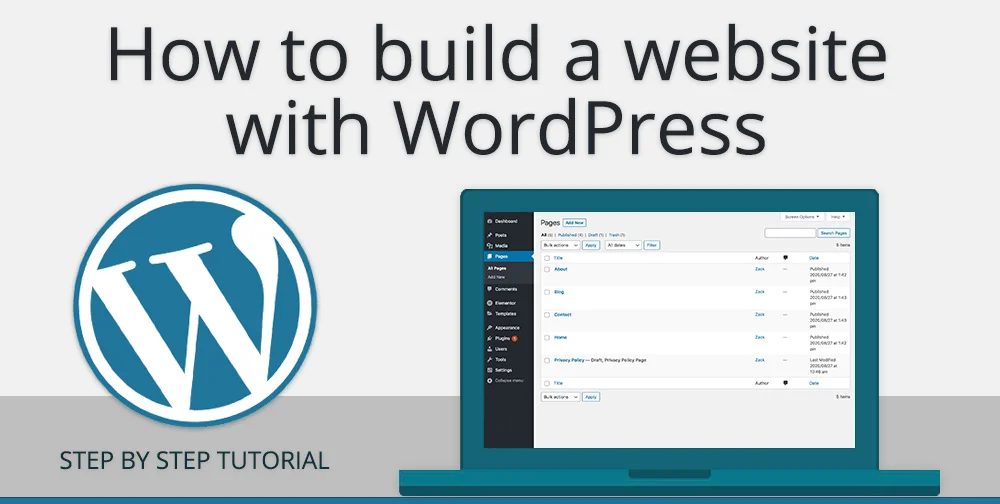
When you first log into your WordPress dashboard, the array of menus and options might seem busy. Don’t be intimidated. The main menu on the left is your control center. Here’s a quick orientation to the most important sections:
- Posts: This is where you will write and manage your blog articles.
- Media: This is your library of images, videos, and documents you upload to your site.
- Pages: For static, timeless content like your Homepage, About Us, Contact, and Services pages.
- Comments: To manage and respond to visitor feedback on your blog posts.
- Appearance: The command center for your site’s visual design. This is where you control themes, customize your site, create menus, and add widgets.
- Plugins: The “app store” for your website, where you add new features and functionality.
- Users: To manage admin accounts, editors, and contributors.
- Settings: The global configuration hub for your site, where you set your site title, tagline, and other core preferences.
Spend some time clicking around these sections. You can’t break anything, and getting familiar with this interface is key to becoming a proficient WordPress user.
Selecting and Customizing Your Theme
Your theme controls the overall design of your website—the layout, color scheme, typography, and more. WordPress comes with a default theme, but you’ll want to install one that matches your vision. You can browse thousands of free and premium themes by going to Appearance > Themes > Add New.
What to Look For in a Modern WordPress Theme:
- Responsive Design: This is non-negotiable in 2024. Your theme must look and function perfectly on desktops, tablets, and phones. Google now uses mobile-first indexing, meaning it predominantly uses the mobile version of your content for ranking.
- Speed-Optimized: A lightweight, fast-loading theme is critical for user experience and SEO. Avoid “jack-of-all-trades” themes bloated with features you’ll never use.
- SEO-Ready: Well-coded themes follow the best practices recommended by search engines, giving you a head start in the rankings.
- Browser Compatibility: It should work seamlessly across all major browsers like Chrome, Firefox, Safari, and Edge.
- Regular Updates and Good Support: Choose a theme from a developer with a history of frequent updates to ensure compatibility with the latest version of WordPress.
For most users, I recommend starting with a flexible, multi-purpose theme like Astra or Kadence. They are incredibly lightweight, integrate seamlessly with page builders, and offer a wealth of free starter templates for various industries.
The Power of Page Builders: Designing Without Code
While themes provide the foundational structure and style, page builders allow you to create complex, beautiful, and unique layouts with a simple drag-and-drop interface. They are the tools that truly unlock the “no-code” promise of WordPress. For Bella’s bakery, she can drag an image gallery of her pastries, a text block with her story, and a contact form onto her homepage without writing a single line of HTML or CSS.
The two most popular and powerful page builders are:
- Elementor: Known for its intuitive front-end editor. You see your changes as you make them, which is a huge benefit for visual learners. The “what you see is what you get” (WYSIWYG) experience is unparalleled.
- Divi: Features a powerful visual builder and a vast library of pre-made layouts that you can import and customize.
Both have free versions that are quite capable, but their premium versions unlock truly professional design capabilities.
Real-Life Example: Bella chooses the free Astra theme and the Elementor Pro page builder. She goes to the Astra Starter Templates library and selects a pre-designed “Bakery” layout. With a few clicks, she imports this professionally designed layout onto her site. Now, she just uses Elementor’s drag-and-drop interface to replace the template’s stock photos with her own gorgeous pictures of macarons and wedding cakes, changes the text to her bakery’s name and story, and updates the contact information and Google Maps location. What would have taken a web developer weeks to code from scratch, she accomplishes in a single afternoon, with results that look just as professional.
Part 3: Building Core Pages and Essential Functionality
With your design framework and tools in place, it’s time to populate your site with the essential content and features that will serve your visitors and achieve your goals. This is where we move from a pretty shell to a functional tool.
Creating Your Essential Pages
Every website, regardless of its purpose, needs a few core pages. These are the pillars of your site’s structure and the key destinations for your visitors.
- Homepage: This is your digital front door. It should immediately communicate who you are, what you do, and what you want the visitor to do next (e.g., “View the Menu,” “Shop Now,” “Read My Blog,” “Contact Us Today”). Use compelling visuals and clear calls-to-action (CTAs) to guide your visitor’s journey.
- About Page: This is where you build trust and humanize your brand. Tell your story, your mission, and why you do what you do. People connect with people, not just products. Share your passion, your team’s photos, and what makes you unique.
- Contact Page: Make it incredibly easy for people to get in touch with you. At a minimum, include a contact form (created with a plugin like WP Forms), your email address, your physical address (if applicable), a Google Maps embed, and links to your social media profiles. The fewer barriers to communication, the better.
- Blog Page (Optional but Highly Recommended): A blog is the most powerful tool for driving organic traffic from Google. It allows you to answer your customers’ questions, showcase your expertise, and build authority in your field. For a local bakery, blog posts like “5 Questions to Ask Before Ordering a Wedding Cake” or “A Guide to Gluten-Free Baking” can attract people actively searching for those topics.
Extending Your Site with Plugins
If themes control the look and page builders control the layout, then plugins control the functionality. They are like apps for your WordPress site, allowing you to add specific features without coding. There are over 60,000 free plugins in the official WordPress repository, solving almost every problem you can imagine.
Here are the essential plugins every new website should consider:
- Yoast SEO or Rank Math: The definitive plugins for search engine optimization. They provide a simple framework for optimizing every page and post for your target keywords, guiding you to write better meta titles and descriptions, and improving your overall SEO health.
- UpdraftPlus or BlogVault: Backups are your website’s insurance policy. These plugins allow you to schedule automatic backups of your entire site—files and database—and store them in a remote location like Google Drive, Dropbox, or Amazon S3. If anything goes wrong, you can restore your site in minutes.
- Wordfence Security: A comprehensive security suite that includes a Web Application Firewall (WAF) and a malware scanner. It actively blocks malicious traffic and helps harden your site’s security.
- WP Forms: The most user-friendly form builder. It allows you to create simple contact forms, survey forms, and even payment forms with a drag-and-drop interface.
- WooCommerce: If you want to sell products online, this free, powerful plugin transforms your WordPress site into a fully-featured e-commerce store, complete with a shopping cart, checkout, and product management.
A Word of Caution: While plugins are powerful, avoid “plugin bloat.” Every plugin adds a bit of code that your site must load. Only install plugins you truly need from reputable developers with good ratings and frequent updates, and keep them updated. A poorly coded, outdated, or abandoned plugin is a common source of site slowdowns and security vulnerabilities.
Part 4: Optimizing for Growth and Performance
Building your website is just the beginning. To ensure it succeeds, you need to focus on three critical pillars: Speed, SEO, and Security. Neglecting these areas is like building a beautiful store but forgetting to turn on the lights, put up a sign, or lock the door at night.
Maximizing Your Website’s Speed
A slow website loses visitors, customers, and search engine rankings. According to Google, as page load time goes from 1 second to 10 seconds, the probability of a mobile user bouncing increases by 123%. Speed is a feature, not an afterthought.
Actionable Steps to Speed Up Your Site:
- Use a Caching Plugin: This is the single most effective thing you can do for speed. Plugins like WP Rocket (premium) or W3 Total Cache (free) create static HTML files of your dynamic WordPress pages. This means the server doesn’t have to work as hard to build the page for each visitor, drastically reducing load times.
- Optimize Your Images: Never upload a multi-megabyte photo directly from your camera to your site. Large images are the number one cause of slow page loads. Use a plugin like ShortPixel or a free tool like Squoosh.app to compress and resize images before uploading. A good target is to keep most images under 200KB.
- Leverage a Content Delivery Network (CDN): A CDN, like Cloudflare, stores copies of your site’s static files (images, CSS, JavaScript) on a global network of servers. So when a user in London visits your site hosted in Texas, they load those files from a server in the UK, resulting in much faster load times.
Mastering the Basics of SEO
Search Engine Optimization (SEO) is the practice of making your site attractive to search engines like Google. It’s a long-term strategy, but it’s the most sustainable way to attract free, targeted traffic that is actively looking for what you offer.
Your Foundational SEO Checklist:
- Keyword Research: Before you write, know what your audience is searching for. Use free tools like Google Keyword Planner, AnswerThePublic, or even Google’s own autocomplete suggestions to find relevant phrases. For Bella’s bakery, keywords might be “custom birthday cakes near me” or “artisan bakery [City Name].”
- On-Page SEO: For each page or blog post, use your SEO plugin (Yoast or Rank Math) to set a focus keyphrase. The plugin will then guide you to optimize your content, craft a compelling meta title (the blue link in search results), and write a concise meta description (the snippet below it). This is your digital billboard—make it click-worthy!
- Internal Linking: Link to your other relevant pages and posts from within your content. This helps Google understand the structure and hierarchy of your site, spreads “link equity” (ranking power), and keeps visitors on your site longer by guiding them to related information.
- Mobile-Friendliness: We’ve mentioned it before, but it’s critical. Ensure your theme is fully responsive. Google now uses mobile-first indexing, meaning it primarily uses the mobile version of your content for indexing and ranking.
Locking Down Your Website’s Security
The internet can be a dangerous place, with automated bots constantly probing for vulnerable sites. But you don’t need to be a security expert to protect your site. Basic hygiene goes a very long way.
Essential Security Hygiene:
- Strong Passwords & Two-Factor Authentication (2FA): Enforce strong, unique passwords for all user accounts, especially administrators. Then, add an extra layer of security with two-factor authentication using a plugin like Wordfence. This requires a code from your phone in addition to your password to log in.
- Regular Updates: The WordPress core, themes, and plugins are constantly being improved and patched for security vulnerabilities. Keeping everything updated is your best defense against known threats. Enable automatic updates where possible.
- SSL Certificate: Ensure your site has an SSL certificate installed (your hosting provider can help with this, and most offer it for free). This encrypts data between your visitor and your site and is marked by the “HTTPS” and a padlock icon in the browser bar. This is a key trust signal for visitors and a confirmed ranking factor for Google.
Frequently Asked Questions (FAQs)
1. How much does it really cost to build a WordPress website?
While the WordPress software itself is free, running a professional website involves some costs. A typical beginner’s budget is $100-$150 for the first year, covering a domain name (~$12/year), quality shared hosting (~$70-$120/year), and a premium theme or plugin (~$50). This is significantly cheaper than hiring a web developer, who might charge $3,000 – $5,000 for a custom site.
2. Can I build an e-commerce site with WordPress?
Absolutely. The WooCommerce plugin is a full-featured, free e-commerce solution that powers over 28% of all online stores. You can sell physical products, digital downloads, subscriptions, and appointments. It’s highly extensible with its own ecosystem of plugins for payment gateways, shipping, and more.
3. Is WordPress secure for a business website?
Yes, WordPress is inherently secure, but its security depends on its user, much like a house is secure only if you lock the doors and windows. The core software is audited by hundreds of developers. By following best practices—using strong passwords, keeping software updated, installing a security plugin, and using a reputable host—you can create a highly secure website that is safe for business.
4. What’s the difference between posts and pages in WordPress?
Pages are for timeless, static content that forms the foundation of your site (e.g., Home, About, Services, Contact). They are not listed by date. Posts are for time-sensitive, dynamic content like blog articles, which are displayed in reverse chronological order and use categories and tags to organize them.
5. How often should I back up my WordPress site?
For a site that is updated frequently with new content or orders (like an e-commerce store), a daily backup is recommended. For a more static brochure site that rarely changes, a weekly backup may suffice. The critical rule is to always store backups in a remote location (like Google Drive), not on your same hosting server.
6. Can I change my theme after building my website?
Yes, you can switch themes at any time from the Appearance > Themes menu. However, because different themes have different settings, layouts, and often require different page builders, you will likely need to reconfigure some of your content, menus, and widgets after the switch. It’s always best to test a new theme on a staging site (a private copy of your live site) first.
7. Why is my WordPress site running slow?
Common causes include: 1) Slow or overloaded web hosting, 2) Unoptimized images (too large), 3) Too many or poorly-coded plugins, 4) A lack of caching, and 5) Not using a CDN. Use a free tool like GTmetrix or Google PageSpeed Insights to get a detailed report with specific recommendations.
8. Do I need to know how to code to use WordPress?
No, that’s the core beauty of it. With modern page builders like Elementor and Divi, and a vast library of themes and plugins, you can create incredibly sophisticated, custom-looking websites without any knowledge of HTML, CSS, or PHP. The platform is designed for non-technical users.
9. How do I get my WordPress site to show up on Google?
First, ensure your SEO fundamentals are in place (see Part 4). Then, the most important step is to submit your sitemap (often generated by your SEO plugin) to Google Search Console. This free tool tells Google about all your pages and helps you monitor your site’s search performance and identify any issues.
10. What should I do immediately after launching my new WordPress site?
- Double-check all links, forms, and pages for functionality.
- Set up your backups (e.g., UpdraftPlus) and security plugin (e.g., Wordfence).
- Submit your sitemap to Google Search Console.
- Install Google Analytics to start tracking your visitor traffic and behavior.
- Share your new site on your email list and social media channels!
Conclusion: Your Journey Begins Now
Building a website with WordPress is a journey of empowerment. It’s a skill that allows you to bring your ideas, your business, and your voice to a global audience. You’ve moved from understanding the fundamental choice between WordPress.com and WordPress.org, through the practical steps of securing hosting, installing WordPress, and designing with powerful tools, all the way to optimizing for the critical trifecta of speed, security, and search engines.
The path forward is one of continuous learning and iteration. Don’t aim for perfection on day one. The goal is to launch, gather real-world feedback, and improve your site over time. The most successful websites are living projects, always evolving and adapting to the needs of their audience.
You now have the knowledge, the roadmap, and the confidence. The only thing left to do is take that first step. Your digital plot of land is waiting. It’s time to build.