Most people use only a fraction of their devices’ capabilities. By adjusting built-in settings, improving organization, and adopting smarter usage habits, you can unlock better performance, productivity, and battery life—without spending money. This guide outlines practical, real-world ways to optimize smartphones, laptops, and home tech using tools you already have.
Why Most Devices Feel Underpowered (Even When They Aren’t)
If your phone feels slow, your laptop feels cluttered, or your tablet rarely gets used, the issue often isn’t the hardware—it’s how the device is configured and used.
Research from organizations like Pew Research Center consistently shows that while Americans rely heavily on digital devices, many users only engage with a limited set of features. In practice, that means powerful built-in tools—automation, accessibility features, storage management, and system-level optimizations—go largely unused.
The result? People assume they need upgrades or subscriptions when, in reality, better outcomes are often just a few settings away.
Start With a System Reset—Not a Factory Reset
Before making changes, it helps to “reset” how you think about your devices.
Instead of downloading another productivity app, take inventory of what’s already there. Both iOS and Windows 11, for example, include robust built-in tools for file management, automation, screen time tracking, and focus modes.
Ask yourself:
- What tasks do I repeat daily?
- What slows me down the most?
- What feels cluttered or distracting?
This mindset shift is often more valuable than any single tweak.
Optimize Your Smartphone for Daily Efficiency
Smartphones are the most-used devices in the U.S., yet many people only use them for messaging, social media, and basic apps.
Small adjustments can significantly improve how your phone works for you.
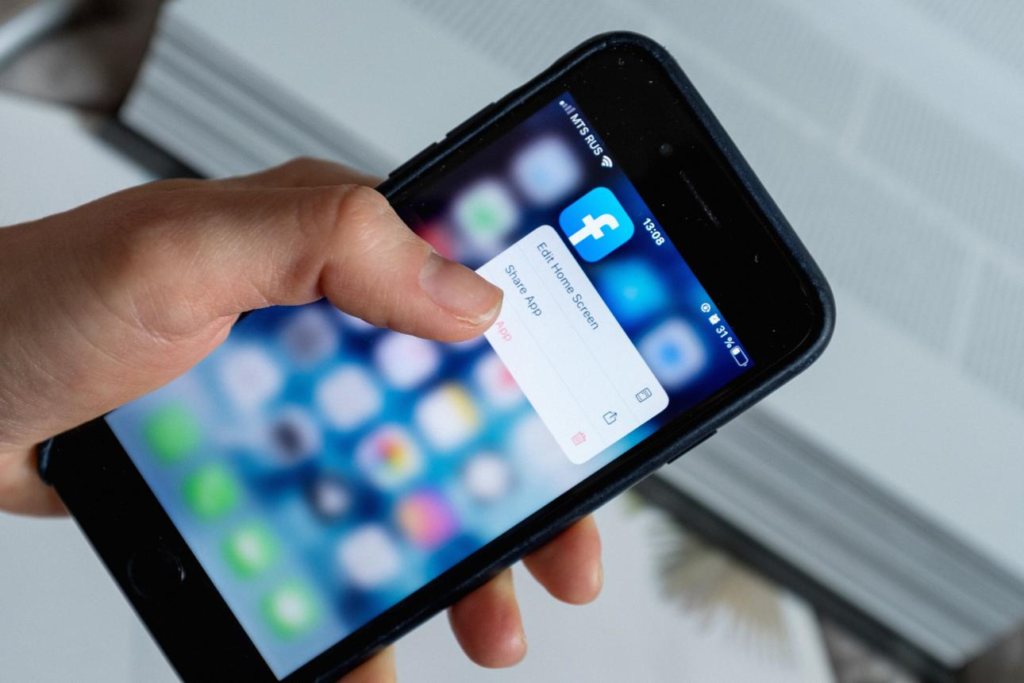
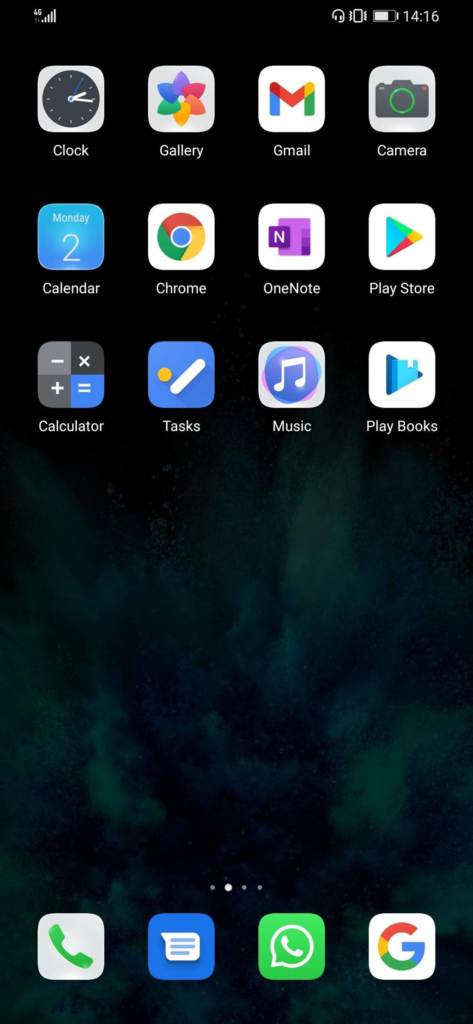
Streamline Your Home Screen
A cluttered home screen increases cognitive load. Instead:
- Keep only essential apps on the first screen
- Use folders for categories like “Finance” or “Travel”
- Remove rarely used apps entirely (you can always search for them later)
This simple change reduces decision fatigue and speeds up navigation.
Use Built-In Focus Modes
Features like Focus or Do Not Disturb allow you to control interruptions during specific times of day.
For example:
- Work hours: Only allow calls from key contacts
- Evening: Silence notifications except urgent messages
- Weekends: Reduce work-related alerts
These settings reduce distractions without requiring additional apps.
Improve Battery Life Without New Tools
Battery issues are one of the most common complaints. Instead of buying accessories, try:
- Lowering background app refresh
- Reducing screen brightness or enabling auto-brightness
- Turning off location services for non-essential apps
According to Consumer Reports, these adjustments can noticeably extend daily battery life.
Make Your Laptop Faster Without Upgrading It
A slow laptop often leads people to consider replacing it—but performance issues are frequently caused by software clutter.
Clean Up Startup Programs
Many applications launch automatically when your computer starts.
To fix this:
- Disable non-essential startup apps
- Keep only critical tools like security software
This alone can reduce boot time significantly.
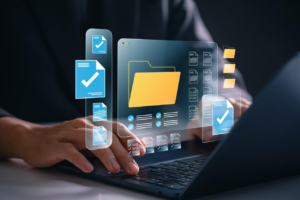
Organize Your Files for Faster Access
Instead of letting files accumulate:
- Create a simple folder system (Work, Personal, Archive)
- Use consistent naming conventions
- Archive old files monthly
This reduces search time and improves workflow clarity.
Use Built-In Productivity Features
Operating systems already include powerful tools:
- Virtual desktops for separating work and personal tasks
- Split-screen view for multitasking
- Keyboard shortcuts to reduce reliance on the mouse
These features are often overlooked but can save hours over time.
Turn Your Tablet Into a Useful Secondary Device
Many tablets sit unused after the initial excitement wears off. With a few adjustments, they can become valuable tools again.
Repurpose for Specific Tasks
Instead of trying to use your tablet for everything, assign it a focused role:
- Reading and note-taking
- Video calls and meetings
- Recipe display in the kitchen
This clarity increases usage and usefulness.
Sync Across Devices
Ensure your tablet works seamlessly with your phone and laptop:
- Enable cloud syncing for notes and documents
- Use shared photo libraries
- Access browser tabs across devices
This creates a more cohesive digital environment without new software.
Fix Wi-Fi and Connectivity Issues at Home
Slow internet is often blamed on service providers, but in many cases, the issue lies within the home setup.
Improve Router Placement
Place your router:
- In a central location
- Elevated (not on the floor)
- Away from thick walls and electronics
These adjustments can improve signal strength immediately.
Reduce Network Congestion
- Disconnect unused devices
- Restart your router weekly
- Use your device’s built-in network diagnostics tools
According to the Federal Communications Commission, simple changes in placement and device management can significantly improve home connectivity.
Use Accessibility Features for Everyday Productivity
Accessibility tools aren’t just for users with disabilities—they’re powerful productivity enhancers.
Features Worth Exploring
- Voice typing for faster note-taking
- Text size and contrast adjustments for readability
- Screen readers for multitasking
Many professionals use these tools to reduce strain and improve efficiency during long work sessions.
Automate Small Tasks Without New Apps
Automation doesn’t require third-party tools. Most devices already include built-in options.
Examples:
- Automatically silence notifications at bedtime
- Schedule email replies or reminders
- Set recurring alarms for routines
These small automations reduce mental load and free up attention for more important tasks.
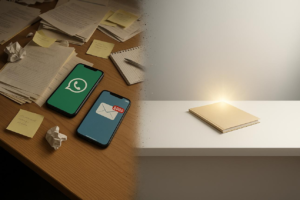
Reduce Digital Clutter to Improve Focus
Digital clutter is one of the biggest hidden productivity drains.
Where to Start
- Delete unused apps
- Clear old photos and downloads
- Unsubscribe from unnecessary email lists
A cleaner digital environment makes devices feel faster and easier to use.
Protect Your Devices Without Paying Extra
Security is often associated with paid services, but built-in protections are strong.
Use What You Already Have
- Enable automatic updates
- Turn on device encryption
- Use built-in password managers
Organizations like National Institute of Standards and Technology recommend these baseline practices as effective security measures for everyday users.
Frequently Asked Questions
1. How can I make my phone faster without downloading apps?
Reduce background processes, delete unused apps, and restart your phone regularly.
2. Why does my laptop feel slow even after updates?
Startup programs, file clutter, and background applications often cause slowdowns.
3. Are built-in tools really enough for productivity?
For most users, yes. Modern operating systems include powerful features that meet everyday needs.
4. How often should I clean up my devices?
A monthly review is typically enough to maintain performance.
5. Do accessibility features drain battery life?
Most have minimal impact and can actually improve efficiency.
6. Is it safe to rely on built-in security features?
Yes, especially when combined with regular updates and strong passwords.
7. Can I improve Wi-Fi without buying new equipment?
Yes, optimizing router placement and reducing interference often helps significantly.
8. What’s the easiest way to reduce distractions?
Use Focus or Do Not Disturb modes during key periods.
9. Should I reset my device if it feels slow?
Try optimization first; resets should be a last resort.
10. How do I know if I actually need an upgrade?
If performance issues persist after optimization, then consider upgrading.
A Smarter Way to Think About Your Tech
Getting more from your devices isn’t about doing more—it’s about doing things differently. When you simplify your setup, reduce clutter, and use built-in tools intentionally, your devices become more responsive, more useful, and less distracting.
The goal isn’t perfection. It’s consistency. Small, thoughtful adjustments—applied over time—can transform how your technology supports your daily life.
What Actually Moves the Needle
- Simplifying your home screen improves speed and clarity
- Built-in tools often replace the need for extra apps
- Regular cleanup prevents long-term slowdowns
- Small automation reduces daily mental load
- Better device habits matter more than new purchases