Making your everyday tech work smarter doesn’t require constant upgrades. By optimizing settings, reducing digital clutter, and using built-in features more effectively, you can improve speed, efficiency, and usability across devices. This guide outlines practical, proven strategies that help extend the life of your current tech while enhancing productivity, privacy, and overall user experience in meaningful, measurable ways.
Why Smarter Tech Use Matters More Than New Devices
For many Americans, the instinct to upgrade devices stems from frustration—slow performance, cluttered interfaces, or declining battery life. However, research from organizations like Pew Research Center shows that most users only tap into a fraction of their device’s capabilities. In many cases, inefficiency comes not from outdated hardware but from under-optimized usage.
Modern smartphones, laptops, and smart home devices are designed with layered functionality. The challenge isn’t access—it’s awareness. Learning how to refine your setup can often deliver results comparable to upgrading, without the financial cost.
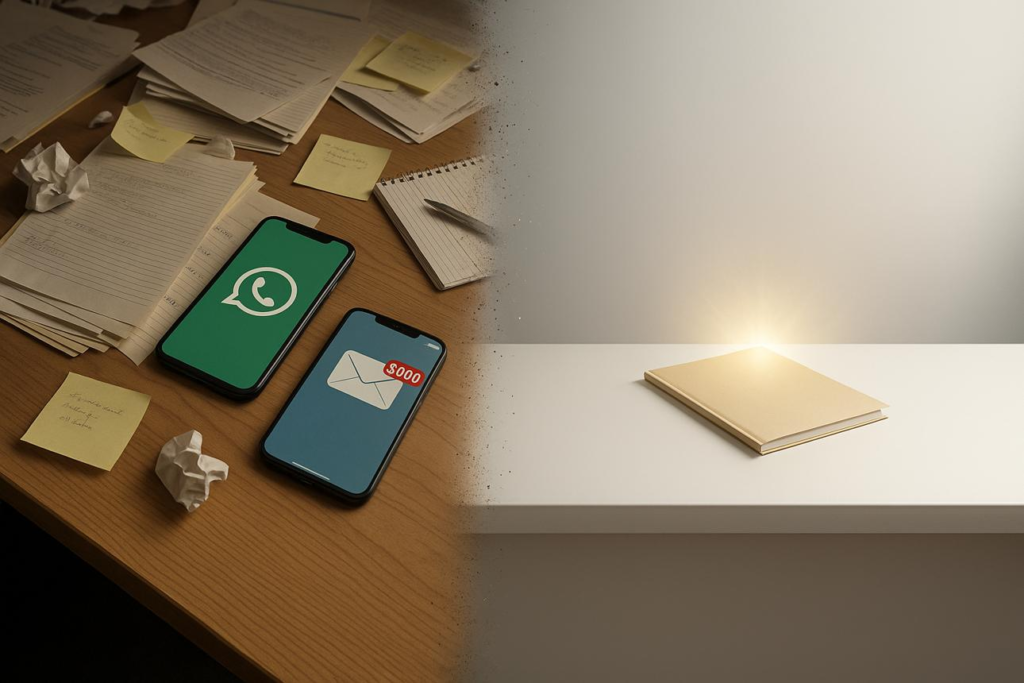
Start With a Digital Declutter
One of the most immediate ways to improve device performance is to reduce unnecessary load. Over time, unused apps, duplicate files, and background processes quietly drain system resources.
Instead of approaching this as a one-time cleanup, treat it as routine maintenance.
Focus on:
- Removing unused apps and browser extensions
- Clearing cached files and temporary storage
- Organizing files into structured folders
- Deleting duplicate photos and videos
For example, a typical smartphone user in the U.S. installs dozens of apps but actively uses fewer than 10 each week. Removing inactive apps can reduce background data usage and improve battery performance almost instantly.

Optimize Built-In Settings You’re Probably Ignoring
Most devices include powerful features designed to improve performance and usability—but they’re often buried in settings menus.
Take time to review system preferences with intention.
Key adjustments to explore:
- Battery optimization modes to extend daily usage
- Notification controls to reduce distractions
- Location services settings to limit unnecessary tracking
- Background app refresh settings to conserve resources
On devices running iOS or Android, small adjustments like disabling background refresh for non-essential apps can significantly improve both speed and battery life.
Use Automation to Reduce Repetitive Tasks
Automation isn’t just for advanced users—it’s increasingly accessible to everyday consumers.
Simple automations can remove friction from daily routines:
- Automatically silencing notifications during work hours
- Scheduling Wi-Fi or Bluetooth to turn off when not needed
- Creating shortcuts for frequent actions like sending messages or opening apps
For instance, built-in tools like Apple Shortcuts or Google Assistant routines allow you to bundle multiple actions into a single command. This reduces manual input and streamlines everyday interactions.

Improve Wi-Fi and Connectivity Without Upgrading Hardware
Slow internet is often blamed on aging devices, but the issue frequently lies in network setup rather than hardware limitations.
Before investing in new equipment, consider optimizing your existing connection.
Practical steps include:
- Repositioning your router to a central location
- Switching between 2.4GHz and 5GHz bands based on usage
- Updating router firmware
- Limiting the number of connected devices during peak hours
According to data from Federal Communications Commission, simple router placement adjustments can improve signal strength significantly in residential environments.
Master Your Notifications Instead of Letting Them Control You
Notifications are designed to capture attention—but unmanaged, they can reduce productivity and increase device fatigue.
A smarter approach is selective engagement.
Instead of disabling everything, prioritize what matters:
- Allow real-time alerts only for communication and critical apps
- Batch less important notifications into scheduled summaries
- Use “Do Not Disturb” or focus modes during key hours
Both iOS and Android now include advanced focus settings that let users tailor notification behavior to specific contexts, such as work or sleep.
Extend Battery Life With Behavioral Adjustments
Battery degradation is one of the main reasons users consider upgrading devices. However, usage patterns often play a larger role than hardware age.
Instead of replacing your device, adjust how you use it.
Effective habits include:
- Lowering screen brightness or enabling adaptive brightness
- Avoiding extreme charge cycles (0% to 100%)
- Using low power mode during extended use
- Disabling unnecessary location tracking
A study referenced by Battery University indicates that partial charging cycles can significantly extend lithium-ion battery lifespan compared to full discharge cycles.

Make Your Laptop Feel New Again
If your computer feels slow, a few targeted changes can make a noticeable difference.
Start by evaluating startup behavior. Many applications launch automatically, consuming memory before you even begin working.
Focus on:
- Disabling unnecessary startup programs
- Updating your operating system and drivers
- Using lightweight alternatives to heavy software
- Clearing browser tabs and extensions
For example, switching from resource-heavy browsers to more efficient configurations—or simply reducing open tabs—can dramatically improve responsiveness on older machines.
Use Cloud Services Strategically (Not Excessively)
Cloud storage is convenient, but over-reliance can introduce inefficiencies, especially when syncing large volumes of unnecessary data.
A balanced approach works best.
Consider:
- Storing frequently used files locally for faster access
- Using cloud storage for backup rather than primary access
- Organizing files into clear, searchable structures
Services like Google Drive and Dropbox are most effective when used intentionally—not as catch-all storage systems.
Keep Software Updated—But Be Selective
Updates are essential for security and performance, but not every update needs to be installed immediately.
Adopt a measured approach:
- Prioritize security updates
- Delay major feature updates until stability is confirmed
- Remove outdated apps that no longer receive support
This approach ensures your devices remain secure without introducing unnecessary disruptions.
Build Smarter Daily Habits Around Your Tech
Ultimately, the effectiveness of your devices depends on how you use them.
Small behavioral changes often yield the biggest results:
- Setting boundaries for screen time
- Using devices with purpose rather than habit
- Regularly reviewing and refining your setup
These adjustments not only improve performance but also create a more intentional, less stressful relationship with technology.
Frequently Asked Questions
1. Can older devices still perform well without upgrades?
Yes. With proper maintenance and optimization, many devices can remain functional and efficient for years beyond their expected upgrade cycle.
2. How often should I declutter my devices?
A monthly review is ideal for maintaining performance and preventing buildup.
3. Do background apps really affect performance?
Yes. They consume memory, processing power, and battery—even when not actively used.
4. Is it safe to disable system features?
It depends. Avoid disabling critical system services, but adjusting non-essential features is generally safe.
5. What’s the easiest way to improve battery life quickly?
Reducing screen brightness and limiting background activity typically deliver immediate results.
6. Are automation tools difficult to use?
No. Most modern automation tools are designed with user-friendly interfaces and templates.
7. Does clearing cache actually help?
Yes. It can free up storage and improve app responsiveness.
8. Should I always install software updates immediately?
Security updates should be prioritized, but feature updates can be delayed briefly.
9. How many apps is too many?
There’s no fixed number, but unused apps should be removed regularly.
10. Can Wi-Fi issues slow down my device?
Indirectly, yes. Poor connectivity can make devices appear slower due to delayed data loading.