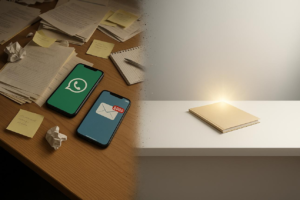
Optimizing your personal tech setup doesn’t require expensive upgrades—it’s about thoughtful configuration. By reducing digital clutter, refining notifications, improving device performance, and aligning tools with your workflow, you can significantly enhance focus, speed, and efficiency. This guide outlines practical, evidence-based adjustments that help you work smarter with the devices you already own.
Why Your Tech Setup Matters More Than You Think
Most people assume productivity problems come from lack of discipline or time. In reality, your digital environment plays a significant role. A cluttered desktop, constant notifications, and inefficient workflows quietly drain attention and slow performance.
Research from the American Psychological Association shows that frequent task-switching can reduce productivity by up to 40%. Meanwhile, studies from University of California, Irvine found it can take over 20 minutes to refocus after interruptions.
Optimizing your tech setup isn’t about perfection—it’s about removing friction.
1. Start With Digital Decluttering
A clean environment reduces cognitive load and decision fatigue. Think of your devices as workspaces—if they’re messy, your thinking becomes scattered.
Instead of overhauling everything at once, start small.
Key adjustments that make an immediate difference:
- Organize your desktop into 3–5 clearly labeled folders
- Delete unused apps and duplicate files
- Use a consistent naming system for documents
- Archive old files instead of keeping everything visible
- Keep your home screen limited to essential tools only
For example, a marketing professional might create folders like “Active Projects,” “Reference,” and “Archive,” making it easier to locate files quickly without searching.
Over time, this reduces friction in everyday tasks and speeds up decision-making.
2. Take Control of Notifications (The Biggest Focus Killer)
Notifications are designed to capture attention—not protect it.
A 2023 survey by Pew Research Center found that a majority of Americans feel overwhelmed by the number of notifications they receive daily.
Instead of turning everything off, refine your approach.
Use a tiered notification system:
- Critical: Calls, calendar alerts, urgent messages
- Important: Work apps during office hours only
- Non-essential: Social media, promotional alerts (off by default)
Most smartphones and computers now include “Focus” or “Do Not Disturb” modes. Use them strategically during deep work sessions.
A simple adjustment—like disabling banner notifications—can prevent dozens of unnecessary interruptions per day.
3. Optimize Your Device Performance (Without Buying New Hardware)
Slow devices often result from poor maintenance—not outdated technology.
Before considering an upgrade, address common performance issues.
Practical ways to improve speed:
- Restart your device at least once a week
- Limit startup programs and background apps
- Keep your operating system updated
- Clear browser cache and unused extensions
- Ensure at least 15–20% free storage space
For example, many users experience faster laptop performance simply by removing unused browser extensions, which often run continuously in the background.
Even older devices can feel significantly faster with these adjustments.

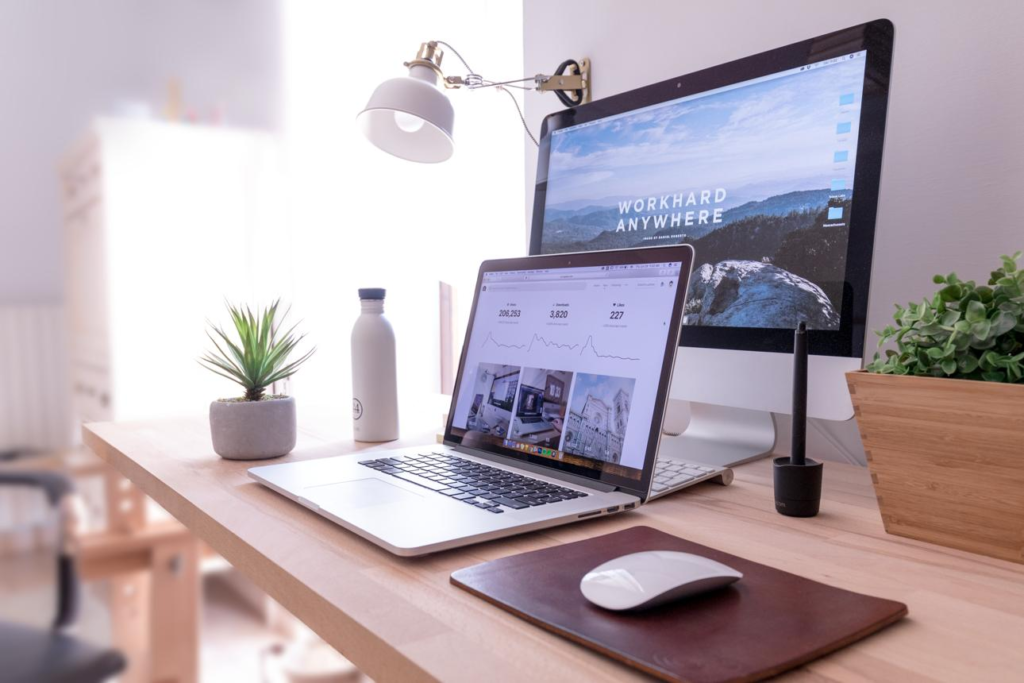
4. Design a Distraction-Resistant Workspace
Your physical and digital environments should support the same goal: sustained focus.
A well-optimized workspace doesn’t need to be elaborate. It needs to be intentional.
Small changes that improve focus:
- Use a dedicated workspace—even if it’s a small desk
- Position your screen at eye level to reduce strain
- Keep only necessary items within reach
- Use neutral or minimal desktop backgrounds
- Reduce open tabs to only what’s actively needed
On the digital side, consider using full-screen modes or distraction-free writing apps when working on complex tasks.
The goal is simple: fewer visual decisions, more mental clarity.
5. Streamline Your Core Tools
Most people use too many apps for the same purpose, creating unnecessary complexity.
Instead, aim for a simplified, integrated system.
Focus on consolidating tools:
- Use one primary note-taking system
- Choose a single task manager
- Standardize file storage (e.g., one cloud platform)
- Avoid overlapping apps with similar functions
For instance, instead of juggling multiple to-do apps, choose one system and commit to it. Consistency reduces mental overhead and improves execution.
6. Automate Repetitive Tasks
Automation isn’t just for developers—it’s accessible to everyone.
Small automations can save hours each week.
Examples of simple automation:
- Email filters that sort incoming messages
- Calendar scheduling links to avoid back-and-forth emails
- Automatic backups for files and photos
- Text shortcuts for frequently used responses
For example, creating email rules to sort newsletters into a separate folder prevents inbox overload while keeping information accessible.
These adjustments reduce decision fatigue and free up cognitive bandwidth.

7. Improve Your Internet and Connectivity Setup
A slow or unstable connection can disrupt workflow more than almost any other factor.
Before upgrading your plan, optimize your setup.
Steps to improve connectivity:
- Position your router centrally in your home
- Reduce interference from other electronics
- Use wired connections for critical tasks
- Restart your router periodically
- Upgrade outdated routers if necessary
Even small adjustments—like relocating your router—can significantly improve speed and reliability.
8. Build Focus-Friendly Work Habits Into Your Tech
Technology should reinforce good habits—not undermine them.
Instead of relying on willpower, use built-in features to support focus.
Examples:
- Use app timers to limit distractions
- Schedule “focus blocks” in your calendar
- Use website blockers during deep work
- Enable grayscale mode to reduce screen appeal
These tools create boundaries that make it easier to stay on task.
9. Regularly Review and Reset Your Setup
Optimization isn’t a one-time task. Your needs evolve, and your setup should adapt.
A monthly review can prevent digital clutter from building up again.
Ask yourself:
- What tools am I not using anymore?
- What’s slowing me down daily?
- Which notifications are unnecessary?
- Where am I losing time?
This habit ensures your system stays aligned with how you actually work—not how you intended to work months ago.

Frequently Asked Questions
1. How often should I optimize my tech setup?
A light review once a month and a deeper reset every 3–6 months works well for most people.
2. Do I need expensive tools to improve efficiency?
No. Most improvements come from better organization and settings—not new purchases.
3. What’s the fastest way to improve focus immediately?
Turn off non-essential notifications and reduce open tabs.
4. Why does my computer feel slow even if it’s new?
Background apps, startup programs, and browser extensions often cause slowdowns.
5. Are productivity apps necessary?
Only if they simplify your workflow. Too many apps can reduce efficiency.
6. How can I reduce digital distractions at work?
Use focus modes, block distracting sites, and schedule uninterrupted work periods.
7. What’s the ideal number of apps to use daily?
There’s no fixed number, but fewer, well-integrated tools are generally better.
8. Should I keep my desktop completely empty?
Not necessarily. Keep only what you actively use.
9. Does internet speed affect productivity significantly?
Yes. Slow connections can disrupt workflow and increase task completion time.
10. What’s one overlooked optimization tip?
Regularly restarting devices—simple but highly effective.
A More Intentional Way to Work With Technology
Optimizing your personal tech setup is less about technology itself and more about intentional use. The goal isn’t to eliminate every distraction or achieve perfect efficiency—it’s to create an environment that supports how you think and work best.
Small, consistent adjustments often deliver the most meaningful improvements. When your tools align with your workflow, focus becomes easier, tasks move faster, and your day feels more manageable.
Quick Recap for Smarter Tech Use
- Declutter digital spaces regularly
- Control notifications with clear priorities
- Maintain device performance through simple habits
- Simplify and consolidate tools
- Use automation to reduce repetitive work
- Optimize your internet setup
- Build focus-supporting habits into your devices
- Review and refine your setup consistently